From Gmail Blog, December 16th
Ho-ho-hold the phone: Santa’s on the line
Posted by Trevor Claiborne, Product Marketing Manager
Last year, Santa got his very own Google Voice number, and people around the U.S. received a special personalized holiday phone call from Santa Claus.
This year, Santa wants you to reach out to him (after all, reindeer are only so-so conversationalists). If you or your family members have a special request for Santa, you can call him right from Gmail* and leave him a message at his Google Voice number: 855-34-SANTA. Santa won't be able to return messages himself—it’s a busy time of year for him—but he's promised to keep us up to date on happenings in the North Pole day by day.
You also can create and send a unique, customized phone call from Santa to anyone you know, from your nieces and nephews to old college friends, over the phone (to U.S. numbers only). Listen to a sample phone call, and send a message of your own from SendaCallFromSanta.com.
Of course, Santa is never one to fall behind the technological times (word on the street is that Rudolph’s nose was recently upgraded to an energy-efficient LED). So while the red suit may never go out of style, this year Santa has come up with an extra special way to spread the holiday cheer. But you’ll have to wait until it’s closer to Christmas to find out what it is. So no peeking—but keep checking the site!
Happy Holidays from your friends at Gmail.
*Calls from Gmail are free for U.S. and Canadian users, but will cost people outside those areas $.01/minute (plus any applicable VATs).
Cross-posted on the Official Google Blog
Showing posts with label technology. Show all posts
Showing posts with label technology. Show all posts
Wednesday, December 21, 2011


Wednesday, December 7, 2011
Technology Tip #20:YouTube Holiday Hellos!

Ah, the infamous Holiday Newsletter. Depending on the author it can be a instrument of entertainment or terror. You can still send traditional ink, but engage your family with a Holiday Video and post it on YouTube.
Holiday Video:
Step 1: Use a recording device like your digital camera, a web cam with microphone on your computer, etc and work with your family to make a short two minute video saying hello to everyone for the holidays. You can have fun with this by wearing your favorite holiday sweater and showing off your Christmas decorations.
Step 2: Go to www.youtube.com and upload your video. YouTube will generate a link that you can share with people. (Click here to be brought to the YouTube help page.)
Step 3: Send an e-mail to friends and family with the link to your Holiday Video.
Making the video is part of the fun and is a bonding opportunity with family members or unfortunate pets. It may not be a masterpiece but you will stand out from the ink newsletters. To give you a little courage check out Bob's family holiday video.
Monday, November 21, 2011
Technology Tip 18: Manage Your Facebook
If you aren't on Facebook I bet you have heard about it in the news. This website has more than 800 million active users. When you post something interesting it can spread like wild fire around the world. There are countless stories of people losing their jobs, marriages, and more about the carelessness of their posting and who sees it. There is also concerns from parent's about children posting information on the internet and who has access to it.
The truth is, Facebook is as private as you would like it to be. You can choose who can view your information, what information you see, and even if someone can find your name when they search the website. One of the best resources I have found that guides you through Facebook is the CIO Facebook Bible. If you want to start out with ten simple steps try their 10 Essential Tips & Tricks for all Facebook Users.
I just learned to clean up all those game requests I keep getting and have no interest in!
Wednesday, November 16, 2011
Technology Tip 17: Gmail Shortcut Keys
Keyboard shortcuts (from Google Help Page)
I was ecstatic to come across these shortcut keys for Gmail! If you have questions please feel free to e-mail us at mukref@gmail.com.
Keyboard shortcuts help you save time by allowing you to never take your hands off the keyboard to use the mouse. You'll need a Standard 101/102-Key or Natural PS/2 Keyboard to use the shortcuts.
To turn these case-sensitive shortcuts on or off, click the gear icon  at the top of any Gmail page and then Mail settings. Choose the option next to "Keyboard shortcuts" to turn them on. You can also enable shortcuts automatically by going to http://mail.google.com/mail/?kbd=1
| Shortcut Key | Definition | Action |
|---|---|---|
| c | Compose | Allows you to compose a new message. |
| / | Search | Puts your cursor in the search box. |
| k | Move to newer conversation | Opens or moves your cursor to a more recent conversation. You can hit |
| j | Move to older conversation | Opens or moves your cursor to the next oldest conversation. You can hit |
| n | Next message | Moves your cursor to the next message. You can hit |
| p | Previous message | Moves your cursor to the previous message. You can hit |
| o or | Open | Opens your conversation. Also expands or collapses a message if you are in 'Conversation View.' |
| u | Return to conversation list | Refreshes your page and returns you to the inbox, or list of conversations. |
| e | Archive | Archive your conversation from any view. |
| m | Mute | Archives the conversation, and all future messages skip the Inbox unless sent or cc'd directly to you. Learn more. |
| x | Select conversation | Automatically checks and selects a conversation so that you can archive, apply a label, or choose an action from the drop-down menu to apply to that conversation. |
| s | Star a message or conversation | Adds or removes a star to a message or conversation. Stars allow you to give a message or conversation a special status. |
| + | Mark as important | Helps Gmail learn what's important to you by marking misclassified messages. (Specific to Priority Inbox) |
| - | Mark as unimportant | Helps Gmail learn what's not important to you by marking misclassified messages. (Specific to Priority Inbox) |
| ! | Report spam | Marks a message as spam and removes it from your conversation list. |
| r | Reply | Replies to the message sender. |
| a | Reply all | Replies to all message recipients. |
| f | Forward | Forwards a message. |
| Escape from input field | Removes the cursor from your current input field. | |
| Save draft | Saves the current text as a draft when composing a message. Hold the | |
# | Delete | Moves the conversation to Trash. |
l | Label | Opens the Labels menu to label a conversation. |
v | Move to | Moves the conversation from the inbox to a different label, Spam or Trash. |
| Mark as read | Marks your message as 'read' and skip to the next message. | |
| Mark as unread | Marks your message as 'unread' so you can go back to it later. | |
| [ | Archive and previous | Removes the current view's label from your conversation and moves to the previous one. |
| ] | Archive and next | Removes the current view's label from your conversation and moves to the next one. |
| z | Undo | Undoes your previous action, if possible (works for actions with an 'undo' link). |
| Update current conversation | Updates your current conversation when there are new messages. | |
| q | Move cursor to chat search | Moves your cursor directly to the chat search box. |
| y | Remove from Current View* | Automatically removes the message or conversation from your current view.
|
| . | Show more actions | Displays the 'More Actions' drop-down menu. |
| Opens options in Chat |
| |
| ? | Show keyboard shortcuts help | Displays the keyboard shortcuts help menu within any page you're on. (Note: Typing ? will display the help menu even if you don't have keyboard shortcuts enabled) |
| k | Move up a contact | Moves your cursor up in your contact list |
| j | Move down a contact | Moves your cursor down in your contact list |
| o or | Open | Opens the contact with the cursor next to it. |
u | Return to contact list view | Refreshes your page and returns you to the contact list. |
e | Remove from Current Group | Removes selected contacts from the group currently being displayed. |
x | Select contact | Checks and selects a contact so that you can change group membership or choose an action from the drop-down menu to apply to the contact. |
Escape from input field | Removes the cursor from the current input | |
# | Delete | Deletes a contact permanently |
l | Group membership | Opens the groups button to group contacts |
z | Undo | Reverses your previous action, if possible (works for actions with an 'undo' link) |
. | Show more actions | Opens the "More actions" drop-down menu. |
Combo-keys - Use the following combinations of keys to navigate through Gmail.
| Shortcut Key | Definition | Action |
|---|---|---|
| Send message | After composing your message, use this combination to send it automatically. (Supported in Internet Explorer and Firefox, on Windows.) | |
| y then o | Archive and next | Archives your conversation and moves to the next one. |
| g then a | Go to 'All Mail' | Takes you to 'All Mail,' the storage site for all mail you've ever sent or received (and have not deleted). |
| g then s | Go to 'Starred' | Takes you to all conversations you have starred. |
| g then c | Go to 'Contacts' | Takes you to your Contacts list. |
| g then d | Go to 'Drafts' | Takes you to all drafts you have saved. |
| g then l | Go to 'Label' | Takes you to the search box with the "label:" operator filled in for you. |
| g then i | Go to 'Inbox' | Returns you to the inbox. |
| g then t | Go to 'Sent Mail' | Takes you to all mail you've sent. |
| * then a | Select all | Selects all mail. |
| * then n | Select none | Deselects all mail. |
| * then r | Select read | Selects all mail you've read. |
| * then u | Select unread | Selects all unread mail. |
| * then s | Select starred | Selects all starred mail. |
| * then t | Select unstarred | Selects all unstarred mail. |
updated 09/21/2011
Wednesday, October 19, 2011
Technology Tip #14: Teaching Resource

This is a tip taken from Tammy Worcester's website.
Teaching Channel
To use it:
1.Go to: http://www.blogger.com/www.teachingchannel.com
2.Use the options on the left side of the page to view videos by subject, grade, or topic.
3.Click at the top to view the most watched videos
4.Go here http://www.teachingchannel.org/newsletters to see past newsletters and/or sign up to receive a weekly newsletter with updates on new videos, inspiring lesson ideas and Tch news!
Tuesday, October 11, 2011
Technology Tip #13: Find How To Do Things Online
The internet is a vast expanse of knowledge that is immediately at your disposal! There is only one problem with that....it isn't organized very well. You can find almost anything you want online *if* you know how to look for it.
In today's blog I am going to show you how to use keywords and boolean to use a search engine like Google help you find how to do tasks in Microsoft Office programs. I have driven myself to the brink of insanity on a few occasions trying to figure how to do a specific task. The chances are if you have had a problem, somebody else has already had the same one. Let's go through how to find instructions on how to do certain tasks in Microsoft Office programs.
Example 1: My teacher requires the pages of my book reports to have pages. How do I do that?
Step 1: Break the problem down into specific key words:
A: You need the program name and year of the program: Microsoft Word 2007
B: Identify the specific task you are trying to do: create page numbers
C: Any additional describing information you may want: on the bottom of the page.
Step 2: Rewrite your question to be a little more concise using your key words:
"How do I create page numbers on the bottom of the page in Microsoft Word 2007?"
Step 3: Write that question into a search engine like Google.com and analyze your results.
Based on your question and choice of key words you will likely get a lot of different responses. The best choices to use are the websites created by the program you are using (like Microsoft's website) or a discussion support board (like howtogeek.com). For this example I found the answer on Microsoft's website, Office.com. To check out the answer click here.
Example 2: (A little more complex) How do I change my settings in Microsoft Office so I don't have automatic formatting for my document?
Now it is up to you to find the answer...or click here.
Monday, October 3, 2011
Technology Tip #12: Enjoyable Web Browsing
One of the easiest ways to learn about computers and other web browsing tools is by using them for entertainment. When you use your computer to watch movies, surf the web, and other fun things...learning how to use them will come naturally (and not feel like work).
Here are a few websites to start you on your entertainment discovery:
StumbleUpon- This website's application helps you to discover web pages, photos and videos that have been recommended by other people. You can also rate the web pages yourself, so the more you use the application the more it gets to know your tastes. I have found some really neat websites through this application, like http://www.jacksonpollock.org/ . What can you find?
Hulu - Hulu is nice because it has a large variety of movies and shows that you can watch for free. That type of (legal) movie selection is a rariety on the Internet. For instance you can watch the popular series The Office or a movie like Beverly Hills Ninja.
Craigslist - Craigslist is a very simple message board with a different website for major metropolitan areas. Essentially it is like a large classifieds website. Use it to find rentals, local people trying to sell items, and job postings. Please be advised that any website that involves people posting can involve scams and fake postings, always use common sense and caution.
Have fun and learn something :).
Wednesday, September 28, 2011
Technology Tip #11: Web Address URL
There is a large difference between www.irs.com and www.irs.gov. One is the legitimate Internal Revenue Serivces website, and the other is a imitation. Who is responsible for the website? The American Library Association has some recommendations:
Many URLs (Uniform Resource Locator or web site address) include the name and type of organization sponsoring the webpage. The 3-letter domain codes and 2-letter country codes provide hints on the type of organization. Common domain codes are:
Many URLs (Uniform Resource Locator or web site address) include the name and type of organization sponsoring the webpage. The 3-letter domain codes and 2-letter country codes provide hints on the type of organization. Common domain codes are:
| Domain | Sample Address |
| .edu = educational institution | http://docsouth.unc.edu |
| .gov = US government site | http://memory.loc.gov |
| .org = organization or association | http://www.theaha.org |
| .com = commercial site | http://www.historychannel.com |
| .museum = museum | http://nc.history.museum |
| .net = personal or other site |
Wednesday, September 21, 2011
Technology Tip #10: Use Your Kindle to Check out E-Books
For the last several years Nooks and other e-readers have had the ability to borrow e-books from public libraries. This borrowing has grown in popularity as the price of books go up and the price of e-readers go down. Kindle owners have been excluded from these library services because Amazon did not allow the use or "sharing" of e-books. Today brings exciting news for Kindle owners, starting today you can borrow e-books from public libraries!
Here is a brief explanation of how to borrow e-books for your Kindle from the Mukwonago Community Library. If you don't have a Kindle and you still want to see how this process works please remember the library has a Kindle available for checkout. Or if you just need more detailed instructions come see us at the reference desk.
Step 1: Go to the library website: http://www.blogger.com/www.mukcom.lib.wi.us
Step 2: Click on the Subscription Database box, and then scroll down to "Overdrive". Click once on Overdrive.
Step 3: Log in to Overdrive with your library card number.
Step 4: There is currently a shortcut on the left hand side of the Overdrive catalog that says "Now Available" and has a picture of the Kindle. Left click there once.
Step 5: Now you have a list of all available titles, add the titles to your cart that you are interested in.
Step 6: When you are ready to check out the "Get for Kindle" button will take you to the Amazon website.
Step 7: Once at the Amazon website you will have to download the appropriate software to your computer.
Step 8: Then the book should appear on your Kindle.
For visual instructions from the Seattle Public Library please try this link.
Good luck and have fun reading!
Step 4:
Wednesday, September 14, 2011
Technology Tip #9: Mint.com
Mint.com is a free website and cell phone app that allows you to keep track of your finances in one place. I have been using it for over 6 months now and find it awesome and with over 6 million users it will be around for awhile. It offers a ton of nifty features like bill reminders to your phone, investment tracking, notification of overdraft, helpful graphs, spending tracking, and more. I have starting using it to track my retirement investments and my little nest egg.
With any website that helps you track financial information be prepared to share your personal information. So if you are still a little new, or do not feel completely comfortable with how good your security and identify theft protection is I would not utilize this website yet. (But they do have exceptional security for a free service.) I highly suggest this if you are a parent trying to teach a young 20 something how to better deal with their finances, it links in the fun of technology with the education of better fiscal responsibility. For a better idea of what they provide check out their promotional video!
Wednesday, September 7, 2011
Technology Tip #8: Online Subscriptions
If you order a magazine or have a cable provider, more and more often vendors are offering complimentary online subscriptions. This may not seem like a big deal until you consider the possibility of legally sharing access to those shows with friends and family.
My parents have a cable subscription with the "works" including HBO. Dish Network as a extra service provides them with the ability to access a website that has all of the latest shows, movies, and other viewing material available with their subscription. Since they don't use the online version they provided me access to their online subscription, and voila I can watch HBO on my computer.
I subscribe to a cooking magazine that my friend who lives across the state always wants to borrow when she comes to my house. The other day I realized I could give her access to my free online subscription and I would be able to keep my magazines for a change!
If you consider offering or sharing these online subscriptions with friends or family, imagine the amount of money it could save for people to pool resources. It also does not have legal issues and implications that resource piracy has. So double check your magazine, cable and other media subscriptions to see if you have online access.
Monday, August 29, 2011
Technology Tip #7: Find Cheap Textbooks
If you are a college student or help a college student out...you know the agony of shelling out hundreds of dollars for books this semester. Just like any product you can use websites to find lower it. Just be wary for shipping costs and figure that into your final total. Cheapism.com offered three websites as their top choices and after trying them I have to agree!
Here are Cheapism’s top picks for college textbooks sites.
Textbook rental site Chegg.com offers 2.4 million titles and gives students the option to send books back for free or buy them at the end of the term. Students can also buy and sell books. The site holds renters accountable for the books’ condition upon return, so it may not be the best choice for copious highlighters, but it earns positive reviews for providing books that look like new. Users also praise the site’s customer service. (Where to buy)
Textbooks.com boasts a selection of 7 million books to buy or rent and offers free shipping on orders of $25 or more. User reviews often cite Textbooks.com as the cheapest option, and the site itself promises up to 90 percent off. Customers also applaud a redesign that makes it easy to find the best deal. (Where to buy)
ECampus.com offers not just textbooks but regular books, DVDs, Blue-ray discs, and college apparel. The site’s textbook inventory comes from a network of third-party sellers, making it susceptible to complaints about delinquent deliveries. Shipping is free for rental returns and orders over $59. (Where to buy)
Here are Cheapism’s top picks for college textbooks sites.
Textbook rental site Chegg.com offers 2.4 million titles and gives students the option to send books back for free or buy them at the end of the term. Students can also buy and sell books. The site holds renters accountable for the books’ condition upon return, so it may not be the best choice for copious highlighters, but it earns positive reviews for providing books that look like new. Users also praise the site’s customer service. (Where to buy)
Textbooks.com boasts a selection of 7 million books to buy or rent and offers free shipping on orders of $25 or more. User reviews often cite Textbooks.com as the cheapest option, and the site itself promises up to 90 percent off. Customers also applaud a redesign that makes it easy to find the best deal. (Where to buy)
ECampus.com offers not just textbooks but regular books, DVDs, Blue-ray discs, and college apparel. The site’s textbook inventory comes from a network of third-party sellers, making it susceptible to complaints about delinquent deliveries. Shipping is free for rental returns and orders over $59. (Where to buy)
Tuesday, August 23, 2011
Let me Cell you on a idea...
I heard some cool news from our Library Automation Coordinator today. "With 2011 LSTA funds a service called LibraryAnywhere was purchased to give libraries a mobile website as well as apps for the public to access information about the libraries as well as search the catalog, place holds and renew materials." Which means coming next month if you download the "Library Anywhere" application to your phone, you will have access to some information and services through the Mukwonago Community Library!
That means the next time you are in a long line at the supermarket...instead of buying that magazine in line...put it on hold from your cell phone.
Tuesday, August 16, 2011
Technology Tip #5: Master Popular Software with Learning Express
I have mentioned Learning Express multiple times in blog posts. I do this because it is a great learning tool, especially for beginners. These free video tutorials can help you learn the popular software listed below.
I cannot stress how important knowing some of this software is for the workplace. If you are nervous about jumping in head first, try Microsoft Word. It is a easier word processing software that you can find on most computers. Just go to our Subscription Database Page, click on Learning Express, and then select "Popular Software Tutorials" in the right hand side. If it is your first time you will have to register so they can track your progress. Good luck!
Wednesday, August 10, 2011
Construction Photos: Twelve
The building is really taking shape! With the trusses up, you can see how the roof lines will look and soon the sheeting will be down and the crews can work on getting shingles in place. Here are some recent views of the progress:

The east side of the building with the main entry in the middle and the community room to the
right. All of the trusses are in place and the plywood sheeting is being installed.

Another view of the eastern exposure and the main entry.
 The northwest corner of the building. The bank of windows on the north side is "visible" in the foreground. This will look very similar to the north end of the old library.
A final view from the south.
Monday, August 8, 2011
Technology Tip #4: Ctrl, Alt, Del
Most computer users are familiar with the "Open Task Manager" feature. For those of us who aren't...it is worth mentioning.
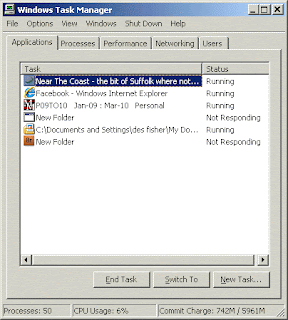
If you ever find yourself in a situation when the computer is running veeerrrrryyyy slowly or continually freezing, the "Open Task Manager" feature may help you fix it. The common problem with slow or continually freezing computers is the computer is just trying to do to much at once. Depending on your computer's speed, used memory, or age it can only do so much at one time.
The "Open Task Manager" feature will help you list everything that the computer is doing. From that list you can see what is is having troubles with. Next to the list it will either report the program as "Responding" or "Not Responding". You will want to go through and close any programs that are Not Responding. Now let's show you how to do it!
Step 1: Press the "Ctrl", "Alt" and "Delete" button all at the same time. Hold it long enough for the screen to change or a box to pop up.
Step 2: Depending on what operating system your computer has, what screen that comes up, or what box that pops up will be different. This is the most common box that will appear. Notice that it lists everything that the computer is running on the left hand side "tasks" and the status of those tasks on the right.
Step 3: You will want to left click once on the task that is "Not Responding". Then left click the "end task" button. Repeat this step until you have closed all of the "Not Responding" tasks.
Step 4: When you are all done to close the "Task Manager" click on the "x" in the upper right hand corner of the screen.
Give it a try!
Wednesday, August 3, 2011
Technology Tip #3: Printing Made Easy
To print from most Microsoft Programs and web browsers,
Hold down the Ctrl button and hit the "P" key.
Try it now!
A box with your printing options will pop up on your screen. The options you have for printing will be different depending on the program or web browser you are using. But most will give you the option of changing from color to black and white printing, the number of pages to print, and more.
Monday, August 1, 2011
Appalachian Storyteller, Sari (Ma) Semple Visits Aug. 10

In the mood for a good old fashioned story told by someone who knows how to spin a yarn? Stop by the Mukwonago Community Library on Wednesday August 10 from 6:30pm-8pm and be enthralled with the master story-telling of Jessica Michna who dons full traditional garb to portray Sari (Ma) Semple, a folksy story-teller from 19th century Appalchia. Sari takes us back to the foothills of the Appalachian Mountains of the mid-nineteenth century. As Sari spins her tales the listener is transported to those hills. The stories blend together the folklore and the gritty reality of life in the ridges and hollers of Appalachia. Young and old alike will be spellbound by the rich tapestry of words woven by Sari. She may not be the First Lady of the Land but she certainly is the first lady of Appalachia.
For more information, stop by the Reference Desk, call (262) 363-6456, or write us at mukref@gmail.com
Monday, July 25, 2011
Technology Tip #2: Organize and Store Your Photos

Digital photography is great! You can take hundreds of photos on one memory card and store them easily on your computer. A common issue I run into with some people is they misunderstand the longevity of digital photographs. They believe that these photographs will be safely stored forever on their computer. The truth is print photographs have a longer life span than digital photographs and that has to do with a technology term called "digital migration".
Digital migration is moving your digital photographs from one electronic device to another. For example you create digital photograph with your phone/scanner/camera and then usually transfer it to a computer. The digital migration is not over for that photograph yet, because you will probably have to move it to several other computers in your lifetime. Consumer Reports suggests replacing your computer every 4 to 6 years. If you move your images on to each new computer, suddenly by the time your new baby gets old enough to graduate high school you have "migrated" 3 or 4 times. Every time you complete that process the chances of those images getting lost or damaged is increased. To avoid those problems I suggest saving them to a online web album.
You can utilize a online web album for easier access and saving of your photos. There are a ton of free services and I am a big fan of Picasa. I think this Google provided program is awesome because is easy to download, will search your computer for all of your photographs, comes with a simple free photo editing software, and gives a lot of control over if anyone can view your photos on the internet. You can also clearly label each photo, change the size of the photo, and correct some of the errors like "red eye". If you find Picasa not to your liking there are other free services like Photobucket and Flickr.
Once you download Picasa and start uploading your photographs you save your computers in a "online web album". That way if your computer ever blows up, melts, freezes, or gets stolen, your photos will be saved and accessible through any other computer with internet access. You can also save your photos in different albums. Here is an example of what a album with one photo would look like (that is my nephew..isn't he cute).
If you are interested in getting started with Picasa I suggest checking out some of the intro material. If you are still a little confused stop in at the library and the staff can assist you in understanding. Good luck with your photos!
Wednesday, July 20, 2011
Technology Tip of the Week Part 1
So I have been mulling over some ideas for a weekly blog segment. There have been some neat blog posts in the past including, BBB (Big, Beautiful, Books) and the Construction Updates on the expansion are awesome! But I wanted something where people could come and learn a little tidbit of information. Since a lot of patrons come to the library to use technology and learn about it, I thought our virtual presence should offer the same services. So welcome to the new weekly blog addition, Technology Tips!

Tips for Week #1: SHORTCUT KEYS
Using the mouse for some people can be difficult, and take a lot of time. A way to make that easier (especially for seniors) is to utilize shortcut keys. Shortcut keys are certain buttons or combination of buttons (pressed at the same time) on the keyboard that will make actions happen. It is often nice because instead of clicking three things to get to that command, you can press these button combinations to make it easier. There are oodles of them, these are just some of the simpler ones I use on a daily basis. Try the web browsing tips NOW! :)
Subscribe to:
Posts (Atom)